> ## Documentation Index
> Fetch the complete documentation index at: https://docs.enrichley.io/llms.txt
> Use this file to discover all available pages before exploring further.
# Connect Enrichley directly to ChatGPT
> A visual, no-Terminal guide to adding the Enrichley MCP server to ChatGPT, authorizing your account, and verifying the connection for free.
This is the shortest way to use Enrichley in ChatGPT. You will add the production Enrichley MCP server through ChatGPT's visual developer-mode flow, connect your Enrichley account, and finish with a free account-status check.
The setup takes about five minutes and does not require Terminal.
This direct setup gives ChatGPT every Enrichley tool and interactive MCP card, but it does **not** bundle the `using-enrichley` workflow skill. If you want tools and the skill together, use the [early-access Enrichley plugin](/mcp/chatgpt-plugin-install).
ChatGPT labels custom MCP connections as elevated risk because OpenAI has not reviewed that individual connection. Only use the production URL shown in this guide. Developer mode availability can depend on your ChatGPT account and workspace policy.
## Before you start
Have these ready:
* a ChatGPT account with access to **Plugins** and **Developer mode**;
* your Enrichley account; and
* the production MCP URL:
```text theme={null}
https://mcp.enrichley.io/mcp
```
Already installed the complete Enrichley plugin? Do not add a second direct connector. Keep the plugin's connected **Enrichley** app instead.
## Enable developer mode
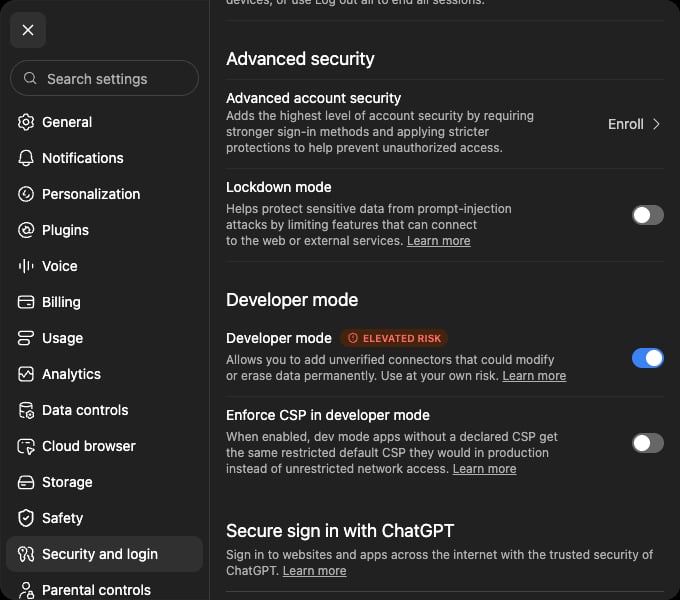
In ChatGPT, open your profile menu, select **Settings**, then select **Security and login**.
Scroll to **Developer mode** and turn it on. Read ChatGPT's elevated-risk notice before continuing.
 ## Add the Enrichley MCP server
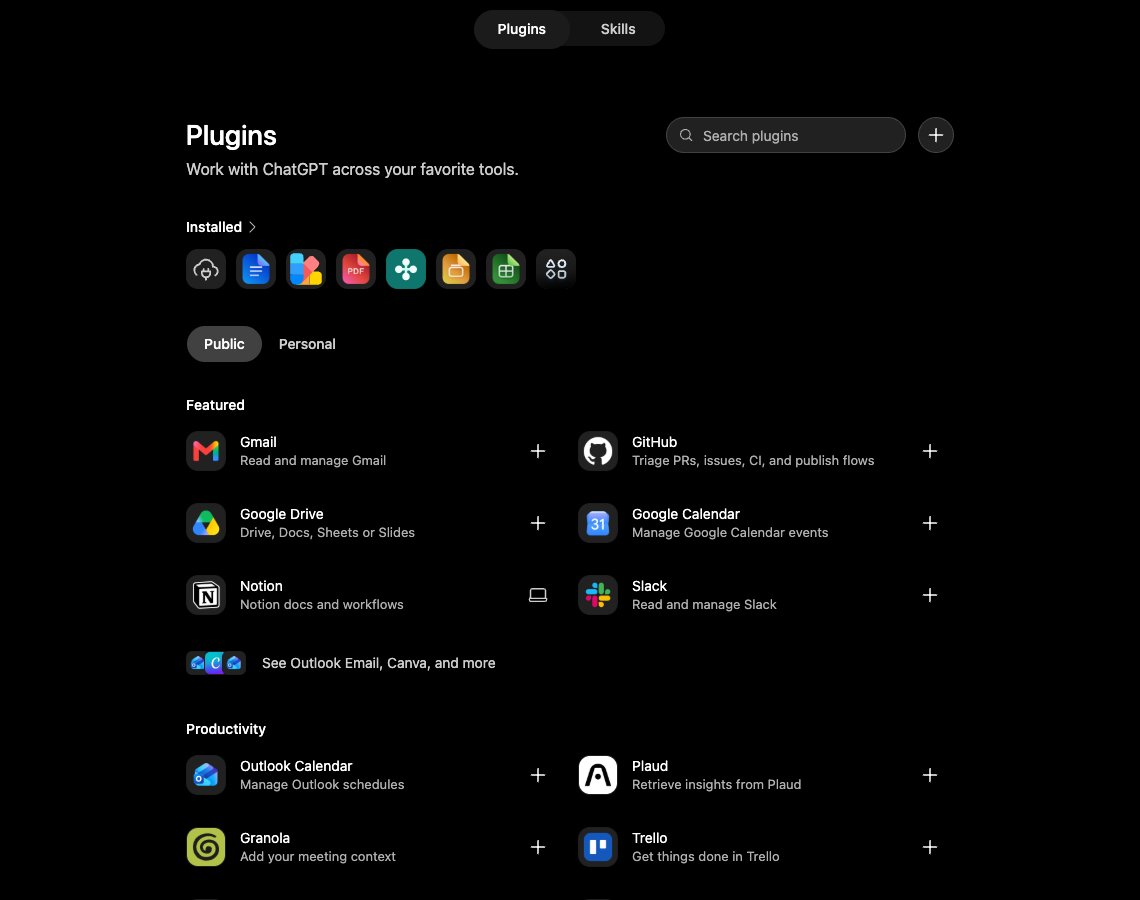
Select **Plugins** in ChatGPT's left sidebar. On the Plugins page, select the **plus (+)** button beside the search box.
## Add the Enrichley MCP server
Select **Plugins** in ChatGPT's left sidebar. On the Plugins page, select the **plus (+)** button beside the search box.
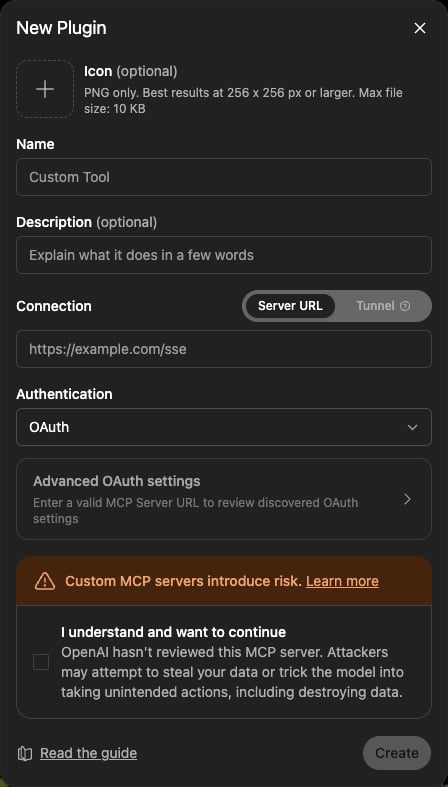
 Fill in the new plugin form:
* **Name:** `Enrichley MCP`
* **Description:** `Search and enrich B2B leads with Enrichley.`
* **Connection:** **Server URL**
* **Server URL:** `https://mcp.enrichley.io/mcp`
* **Authentication:** **OAuth**
Fill in the new plugin form:
* **Name:** `Enrichley MCP`
* **Description:** `Search and enrich B2B leads with Enrichley.`
* **Connection:** **Server URL**
* **Server URL:** `https://mcp.enrichley.io/mcp`
* **Authentication:** **OAuth**
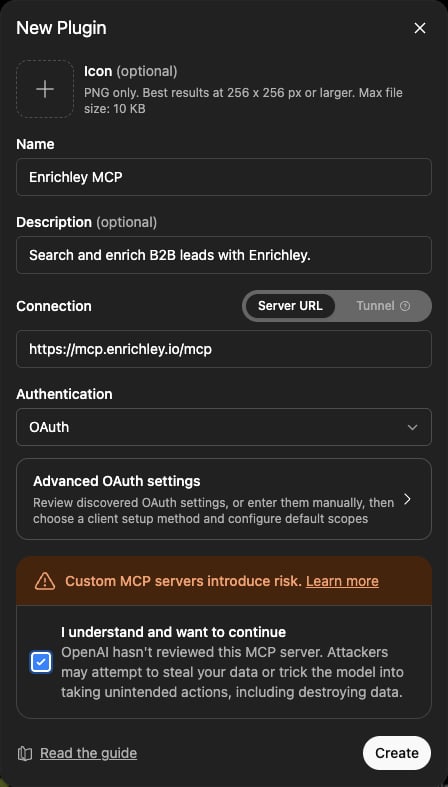
 Wait for **Advanced OAuth settings** to say the settings were discovered. Confirm the URL ends in `/mcp`, select **I understand and want to continue**, then select **Create**.
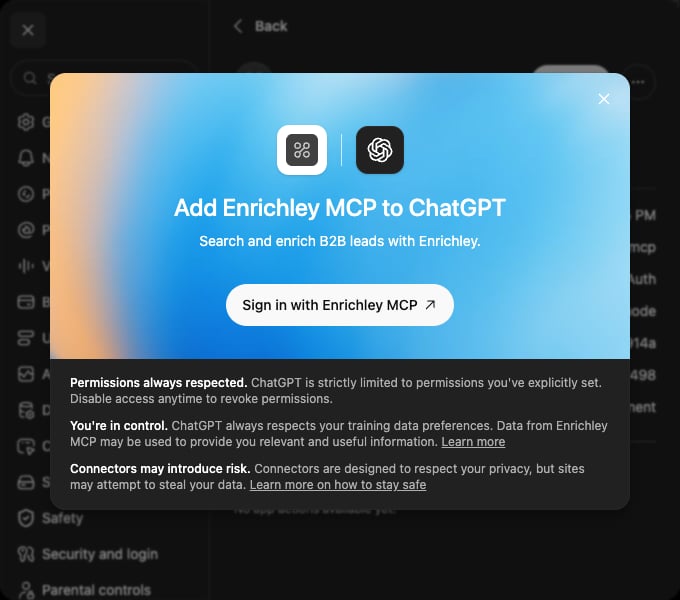
 ChatGPT shows a connection notice. Review it, then select **Sign in with Enrichley MCP**.
 ## Authorize your Enrichley account
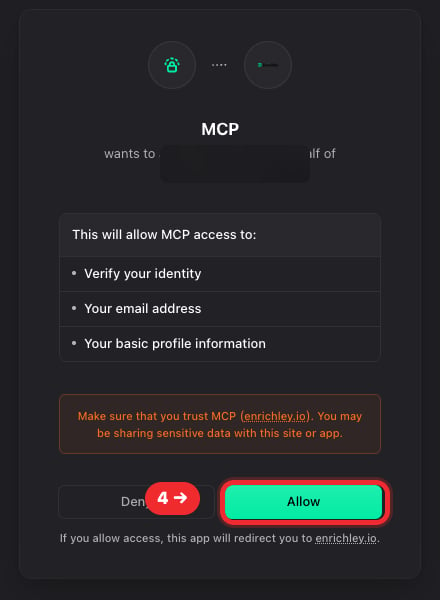
Your browser opens Enrichley's sign-in and consent page. Sign in if asked, review the request, and select **Allow**.
The account identity in this screenshot is intentionally hidden.
## Authorize your Enrichley account
Your browser opens Enrichley's sign-in and consent page. Sign in if asked, review the request, and select **Allow**.
The account identity in this screenshot is intentionally hidden.
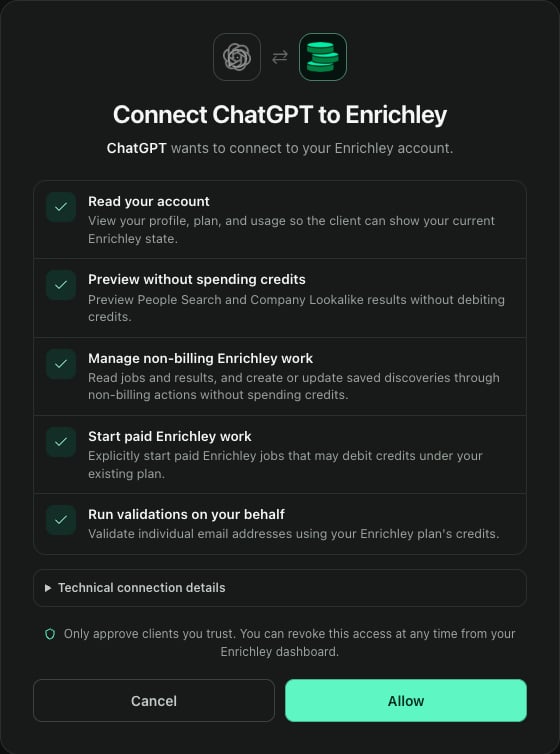
 Enrichley shows the exact access ChatGPT requested. Review the permissions, then select **Allow**.
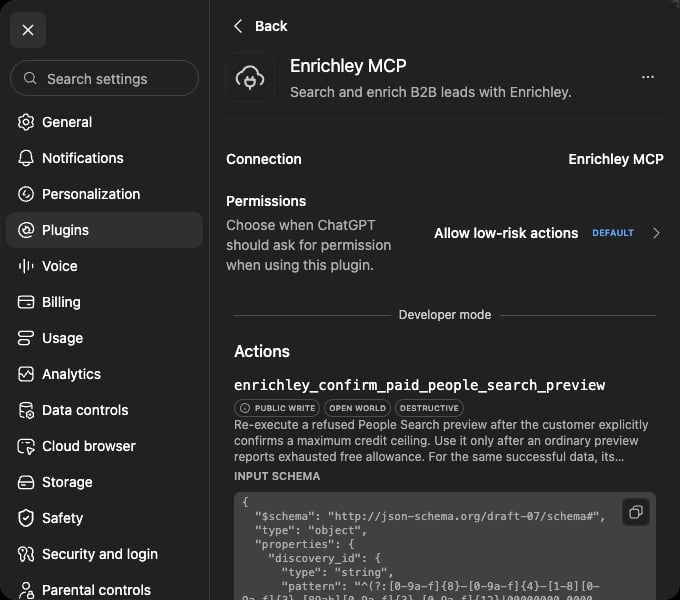
 ChatGPT returns to the new **Enrichley MCP** connection. Select **Refresh** if the Actions section is initially empty. The page should then list Enrichley tools and show:
* URL `https://mcp.enrichley.io/mcp`; and
* Authorization supported: **OAuth**.
ChatGPT returns to the new **Enrichley MCP** connection. Select **Refresh** if the Actions section is initially empty. The page should then list Enrichley tools and show:
* URL `https://mcp.enrichley.io/mcp`; and
* Authorization supported: **OAuth**.
 ## Verify the connection for free
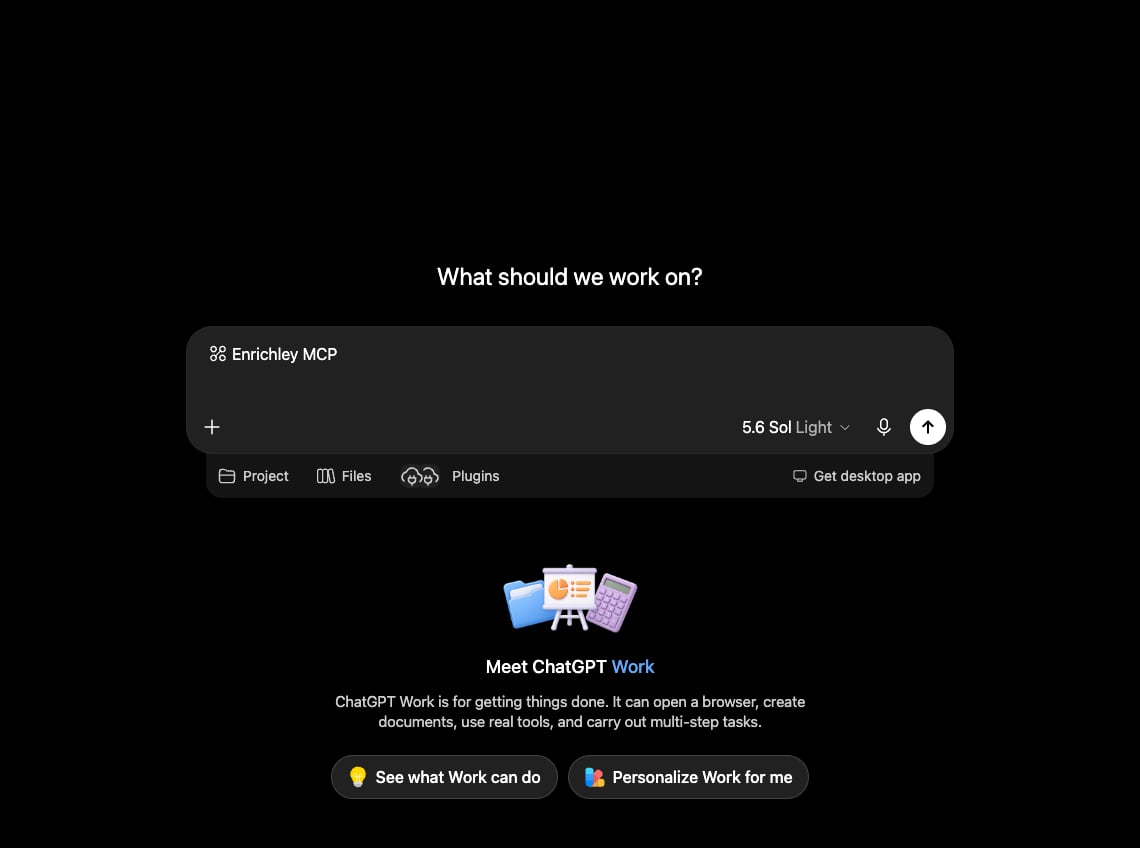
Start a new conversation and select **Work**. Open **Plugins** below the composer, then select **Enrichley MCP**. Its name appears in the composer when attached.
## Verify the connection for free
Start a new conversation and select **Work**. Open **Plugins** below the composer, then select **Enrichley MCP**. Its name appears in the composer when attached.
 Enter:
> Check my Enrichley credit balance.
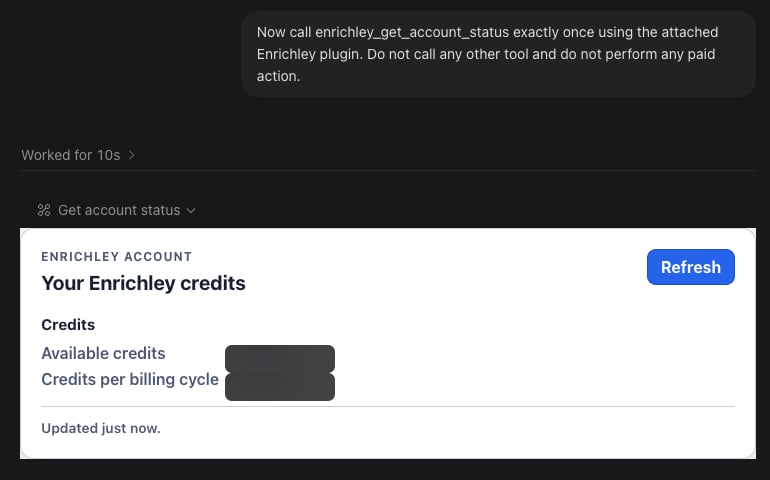
Allow the first Enrichley tool call if ChatGPT asks. ChatGPT should call `enrichley_get_account_status` and render the **Your Enrichley credits** card. This call is free and does not start any paid work.
Enter:
> Check my Enrichley credit balance.
Allow the first Enrichley tool call if ChatGPT asks. ChatGPT should call `enrichley_get_account_status` and render the **Your Enrichley credits** card. This call is free and does not start any paid work.
 ## Optional: add the Enrichley workflow skill
The direct connector is enough to use every Enrichley tool. If your ChatGPT account or workspace also supports personal skills, you can ask the built-in skill creator to make a personal copy of Enrichley's public workflow guidance.
In a fresh Work chat, attach **Enrichley MCP** and send:
```text theme={null}
@skill-creator Create a personal skill named using-enrichley from the instructions at
https://raw.githubusercontent.com/getEnrichley/enrichley-mcp-plugin/main/skills/using-enrichley/SKILL.md
The skill must use my connected Enrichley MCP tools and preserve every preview,
quote, confirmation, credit, and retry safeguard in the source. Show me the skill
before enabling it.
```
If ChatGPT cannot read the raw URL, open the [skill source on GitHub](https://github.com/getEnrichley/enrichley-mcp-plugin/tree/main/skills/using-enrichley) and provide the file to the skill creator directly.
Review the generated personal skill before enabling it. This copy is a snapshot; it does **not** update automatically when Enrichley changes. Recreate or re-import it when a newer Enrichley skill is published.
## If something does not match
* **No Developer mode switch:** your account or workspace policy does not currently expose custom MCP connections. Use the [early-access plugin](/mcp/chatgpt-plugin-install) if repository marketplaces are available, or ask your workspace administrator.
* **Create stays disabled:** confirm the URL is exactly `https://mcp.enrichley.io/mcp`, wait for OAuth discovery, and select the risk acknowledgment.
* **Actions are empty:** open the connection's settings and select **Refresh** once.
* **An old chat cannot see Enrichley MCP:** start a new conversation and attach **Plugins → Enrichley MCP** before sending the request.
* **The tool works but no card appears:** use a fresh **Work** chat. A plain Chat conversation can return the model-readable result without displaying the MCP app card.
* **Two Enrichley entries are active:** keep one path. If you use the complete plugin, remove the standalone **Enrichley MCP** connection. If you use this direct setup, remove stale entries labeled **Dev** or **Preview**.
For more help, see [MCP troubleshooting](/mcp/troubleshooting) or email [support@enrichley.io](mailto:support@enrichley.io).
Add the Enrichley connector and `using-enrichley` skill together.
See every Enrichley tool, its permissions, and its credit cost.
## Optional: add the Enrichley workflow skill
The direct connector is enough to use every Enrichley tool. If your ChatGPT account or workspace also supports personal skills, you can ask the built-in skill creator to make a personal copy of Enrichley's public workflow guidance.
In a fresh Work chat, attach **Enrichley MCP** and send:
```text theme={null}
@skill-creator Create a personal skill named using-enrichley from the instructions at
https://raw.githubusercontent.com/getEnrichley/enrichley-mcp-plugin/main/skills/using-enrichley/SKILL.md
The skill must use my connected Enrichley MCP tools and preserve every preview,
quote, confirmation, credit, and retry safeguard in the source. Show me the skill
before enabling it.
```
If ChatGPT cannot read the raw URL, open the [skill source on GitHub](https://github.com/getEnrichley/enrichley-mcp-plugin/tree/main/skills/using-enrichley) and provide the file to the skill creator directly.
Review the generated personal skill before enabling it. This copy is a snapshot; it does **not** update automatically when Enrichley changes. Recreate or re-import it when a newer Enrichley skill is published.
## If something does not match
* **No Developer mode switch:** your account or workspace policy does not currently expose custom MCP connections. Use the [early-access plugin](/mcp/chatgpt-plugin-install) if repository marketplaces are available, or ask your workspace administrator.
* **Create stays disabled:** confirm the URL is exactly `https://mcp.enrichley.io/mcp`, wait for OAuth discovery, and select the risk acknowledgment.
* **Actions are empty:** open the connection's settings and select **Refresh** once.
* **An old chat cannot see Enrichley MCP:** start a new conversation and attach **Plugins → Enrichley MCP** before sending the request.
* **The tool works but no card appears:** use a fresh **Work** chat. A plain Chat conversation can return the model-readable result without displaying the MCP app card.
* **Two Enrichley entries are active:** keep one path. If you use the complete plugin, remove the standalone **Enrichley MCP** connection. If you use this direct setup, remove stale entries labeled **Dev** or **Preview**.
For more help, see [MCP troubleshooting](/mcp/troubleshooting) or email [support@enrichley.io](mailto:support@enrichley.io).
Add the Enrichley connector and `using-enrichley` skill together.
See every Enrichley tool, its permissions, and its credit cost.