> ## Documentation Index
> Fetch the complete documentation index at: https://docs.enrichley.io/llms.txt
> Use this file to discover all available pages before exploring further.
# Install Enrichley in ChatGPT (early access)
> A visual guide to installing the Enrichley skill and MCP connector from its public GitHub marketplace before the public ChatGPT directory release.
This guide installs the Enrichley plugin in the **ChatGPT desktop app for macOS**. The plugin bundles both the Enrichley MCP connector and the `using-enrichley` skill, so ChatGPT gets the tools and the workflow instructions together.
The setup takes about five minutes. The final verification is a free account-status check and does not spend Enrichley credits.
This is an **early-access repository install** while Enrichley is not yet listed in ChatGPT's public Plugins Directory. OpenAI describes local and repository marketplaces as testing and team-distribution sources, and their availability can vary by surface. Use the ChatGPT desktop app for this setup.
Want the shortest setup and only need Enrichley's tools? [Connect Enrichley directly to ChatGPT](/mcp/chatgpt-connector-install). The direct setup uses ChatGPT's visual interface and does not require Terminal, but it does not include the bundled `using-enrichley` workflow skill.
## Before you start
Have these ready:
* the latest [ChatGPT desktop app for macOS](https://chatgpt.com/download/);
* a ChatGPT account with access to **Plugins**;
* your Enrichley account; and
* Terminal on your Mac.
You do not need to create a connector manually or paste the MCP URL into ChatGPT. The Enrichley repository already packages the registered connector and skill together.
## Add the Enrichley marketplace
In the menu bar, choose **ChatGPT → Quit ChatGPT**. Closing only the window is not enough because ChatGPT reads marketplace changes when the app starts.
Open Terminal and run:
```bash theme={null}
"/Applications/ChatGPT.app/Contents/Resources/codex" plugin marketplace add \
getEnrichley/enrichley-mcp-plugin --ref main
```
A successful command reports that the `enrichley` marketplace was added. This command downloads only the public plugin repository; it does not connect your Enrichley account or spend credits.
Open the ChatGPT desktop app, select **Plugins**, then choose **Personal**.
Under the **Enrichley** marketplace section, open **Enrichley**. Choose the entry with the green Enrichley logo, not a development connector with a similar name.
 ## Install the plugin
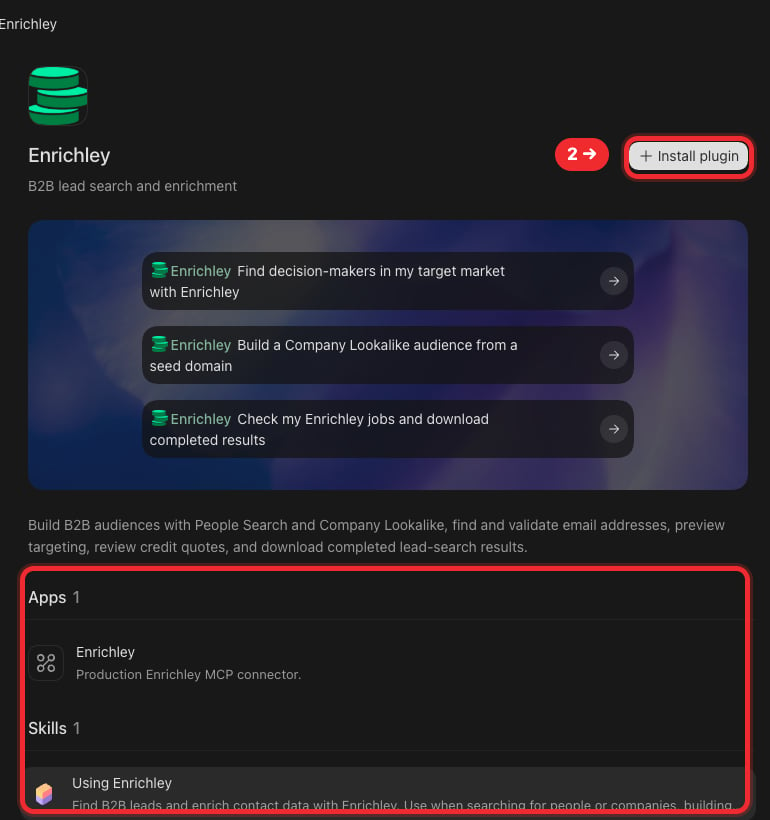
Confirm the page shows:
* **Enrichley**;
* **Apps 1** with the Production Enrichley MCP connector; and
* **Skills 1** with **Using Enrichley**.
Then select **Install plugin**.
The version number may be newer than the screenshots. Install the newest version ChatGPT displays.
## Install the plugin
Confirm the page shows:
* **Enrichley**;
* **Apps 1** with the Production Enrichley MCP connector; and
* **Skills 1** with **Using Enrichley**.
Then select **Install plugin**.
The version number may be newer than the screenshots. Install the newest version ChatGPT displays.
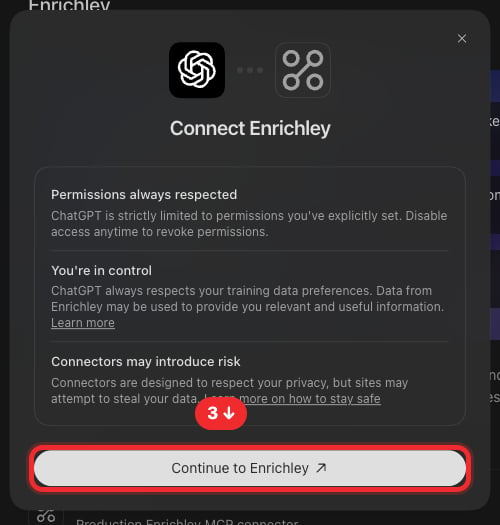
 Review ChatGPT's connection notice and select **Continue to Enrichley**.
 ## Connect your Enrichley account
Your normal web browser opens Enrichley's sign-in and consent page. Sign in if asked, review the request, and select **Allow**.
The account identity in this screenshot is intentionally hidden.
## Connect your Enrichley account
Your normal web browser opens Enrichley's sign-in and consent page. Sign in if asked, review the request, and select **Allow**.
The account identity in this screenshot is intentionally hidden.
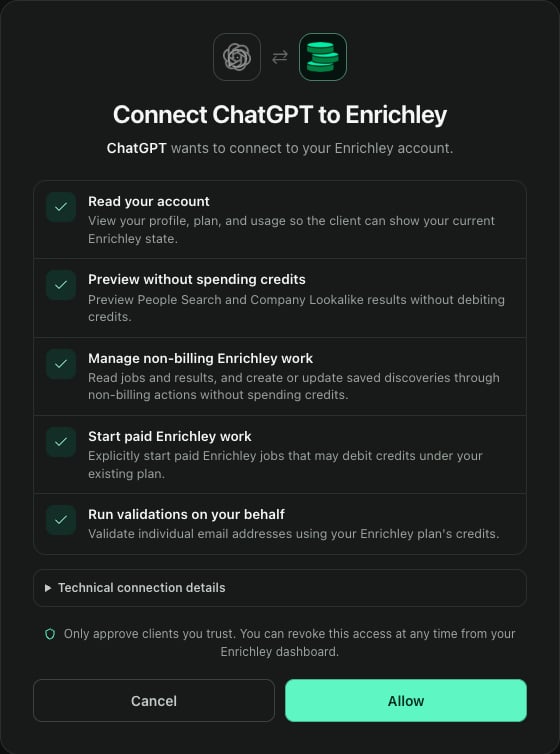
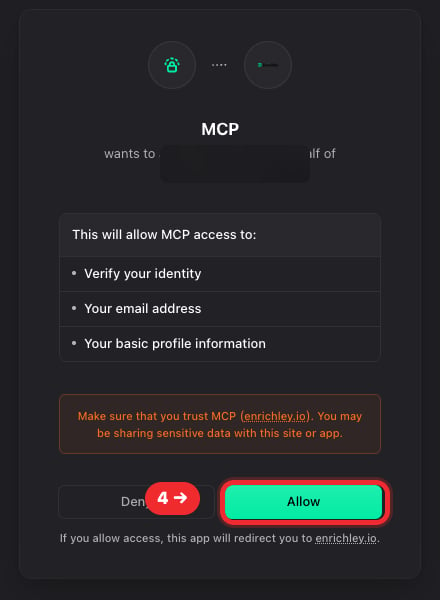 Enrichley shows the exact access ChatGPT requested. Review the permissions, then select **Allow**.
 If your browser asks whether to open ChatGPT, choose **Open ChatGPT** immediately. This native browser prompt completes the handoff; leaving it unanswered can cause **Plugin installation timed out**.
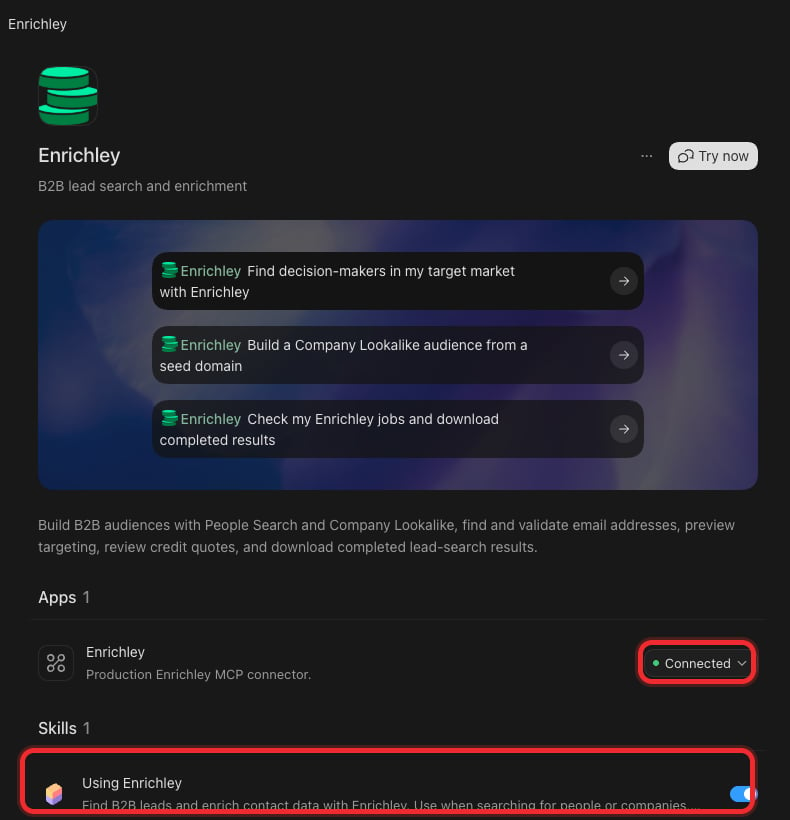
Return to ChatGPT and use the app state as the source of truth. Under **Apps 1**, the Enrichley connector must show **Connected** rather than **Connect** or **Continue connecting**.
If your browser asks whether to open ChatGPT, choose **Open ChatGPT** immediately. This native browser prompt completes the handoff; leaving it unanswered can cause **Plugin installation timed out**.
Return to ChatGPT and use the app state as the source of truth. Under **Apps 1**, the Enrichley connector must show **Connected** rather than **Connect** or **Continue connecting**.
 ## Verify the installation
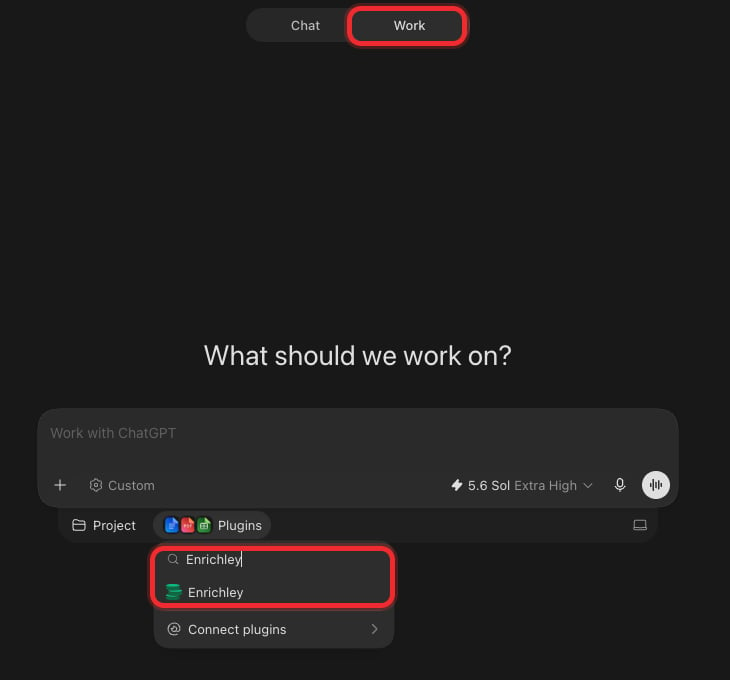
Start a new ChatGPT conversation and select **Work** at the top. Plugin and tool catalogs are fixed when a conversation begins, so do not reuse a chat that was open before installation.
Use **Work** when you want Enrichley's interactive Preview, Run Quote, Download, Error, and Account cards. A plain **Chat** conversation can return model-visible tool results without displaying the MCP app card.
Below the composer, select **Plugins**. Search for **Enrichley**, then select it. A green **Enrichley** label appears in the composer when the plugin is attached.
## Verify the installation
Start a new ChatGPT conversation and select **Work** at the top. Plugin and tool catalogs are fixed when a conversation begins, so do not reuse a chat that was open before installation.
Use **Work** when you want Enrichley's interactive Preview, Run Quote, Download, Error, and Account cards. A plain **Chat** conversation can return model-visible tool results without displaying the MCP app card.
Below the composer, select **Plugins**. Search for **Enrichley**, then select it. A green **Enrichley** label appears in the composer when the plugin is attached.
 Enter:
> Check my Enrichley credit balance.
Allow the first Enrichley tool call when ChatGPT asks. This calls `enrichley_get_account_status` and does not spend credits.
ChatGPT should render the **Your Enrichley credits** card. The account values in this guide are intentionally hidden.
Enter:
> Check my Enrichley credit balance.
Allow the first Enrichley tool call when ChatGPT asks. This calls `enrichley_get_account_status` and does not spend credits.
ChatGPT should render the **Your Enrichley credits** card. The account values in this guide are intentionally hidden.
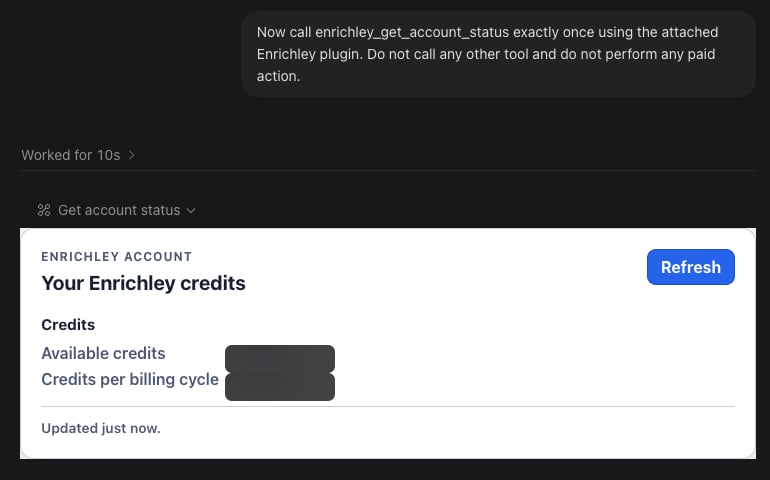 Setup is complete when ChatGPT renders the Enrichley account-status result and the Enrichley plugin page still shows:
* the Production Enrichley connector as **Connected**; and
* the **Using Enrichley** skill enabled.
## Keep the early-access plugin updated
When Enrichley publishes an update, quit ChatGPT, run:
```bash theme={null}
"/Applications/ChatGPT.app/Contents/Resources/codex" plugin marketplace upgrade enrichley
```
Then reopen ChatGPT. If the plugin page still shows an older version, remove and reinstall **Enrichley** from the Enrichley marketplace section; your Enrichley account connection can then be reauthorized.
## If something does not match
* **No Personal tab or marketplace section:** update the ChatGPT desktop app. Repository marketplaces are not exposed on every ChatGPT surface or account.
* **Install plugin is disabled:** quit ChatGPT, run the marketplace command again, and reopen the app.
* **The browser does not return to ChatGPT:** switch back to ChatGPT first. If the Production app says **Connected**, the setup succeeded and the browser tab can be closed.
* **Plugin installation timed out:** start the install again with ChatGPT already open and accept the browser's native **Open ChatGPT** prompt promptly. If no prompt appears, allow external app links for ChatGPT in your browser, then retry once.
* **Connect or Continue connecting remains after authorization:** the browser-to-desktop handoff did not complete. Reopen ChatGPT, open **Plugins → Enrichley**, retry the connection once, and accept **Open ChatGPT**. Do not create a manual MCP connector.
* **Two Enrichley tiles appear after connecting:** ChatGPT can represent the Git marketplace bundle and its connected Production app wrapper as separate tiles. This is still one MCP app connection. Keep the Git marketplace bundle and the connected Production app; remove only entries labeled **Dev** or **Preview**.
* **An old chat cannot see Enrichley:** start a new chat after the connector shows Connected.
* **The tool works but no card appears:** start a fresh **Work** chat, then select **Plugins → Enrichley** below the composer before sending the request.
For more help, see [MCP troubleshooting](/mcp/troubleshooting) or email [support@enrichley.io](mailto:support@enrichley.io).
Follow the visual install guide for Claude web or desktop.
See every Enrichley tool, its permissions, and its credit cost.
Setup is complete when ChatGPT renders the Enrichley account-status result and the Enrichley plugin page still shows:
* the Production Enrichley connector as **Connected**; and
* the **Using Enrichley** skill enabled.
## Keep the early-access plugin updated
When Enrichley publishes an update, quit ChatGPT, run:
```bash theme={null}
"/Applications/ChatGPT.app/Contents/Resources/codex" plugin marketplace upgrade enrichley
```
Then reopen ChatGPT. If the plugin page still shows an older version, remove and reinstall **Enrichley** from the Enrichley marketplace section; your Enrichley account connection can then be reauthorized.
## If something does not match
* **No Personal tab or marketplace section:** update the ChatGPT desktop app. Repository marketplaces are not exposed on every ChatGPT surface or account.
* **Install plugin is disabled:** quit ChatGPT, run the marketplace command again, and reopen the app.
* **The browser does not return to ChatGPT:** switch back to ChatGPT first. If the Production app says **Connected**, the setup succeeded and the browser tab can be closed.
* **Plugin installation timed out:** start the install again with ChatGPT already open and accept the browser's native **Open ChatGPT** prompt promptly. If no prompt appears, allow external app links for ChatGPT in your browser, then retry once.
* **Connect or Continue connecting remains after authorization:** the browser-to-desktop handoff did not complete. Reopen ChatGPT, open **Plugins → Enrichley**, retry the connection once, and accept **Open ChatGPT**. Do not create a manual MCP connector.
* **Two Enrichley tiles appear after connecting:** ChatGPT can represent the Git marketplace bundle and its connected Production app wrapper as separate tiles. This is still one MCP app connection. Keep the Git marketplace bundle and the connected Production app; remove only entries labeled **Dev** or **Preview**.
* **An old chat cannot see Enrichley:** start a new chat after the connector shows Connected.
* **The tool works but no card appears:** start a fresh **Work** chat, then select **Plugins → Enrichley** below the composer before sending the request.
For more help, see [MCP troubleshooting](/mcp/troubleshooting) or email [support@enrichley.io](mailto:support@enrichley.io).
Follow the visual install guide for Claude web or desktop.
See every Enrichley tool, its permissions, and its credit cost.