

You cannot install plugins from the Claude mobile app. Complete these steps once on the web or desktop app; the plugin then syncs to Claude on your other devices.
Before you start
Have these ready:- a Claude account with access to Plugins;
- your Enrichley account; and
- the Enrichley marketplace repository URL:
Add the Enrichley marketplace
1
Open Claude's Plugins page
In Claude, open Customize, choose Plugins, and select Browse. Then select Add in the upper-right corner.
2
Choose Add marketplace
From the Add menu, select Add marketplace.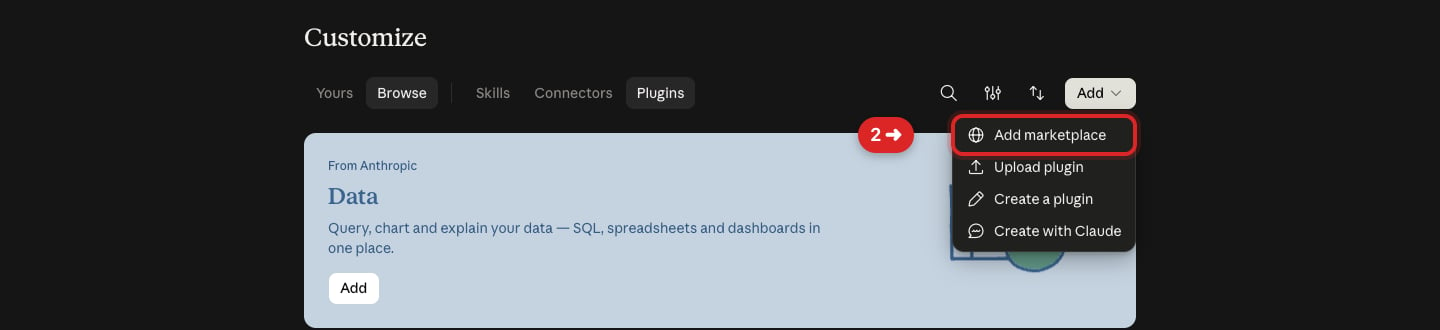
3
Choose Add from a repository
Select Add from a repository. This lets Claude sync the Enrichley plugin directly from its public GitHub repository.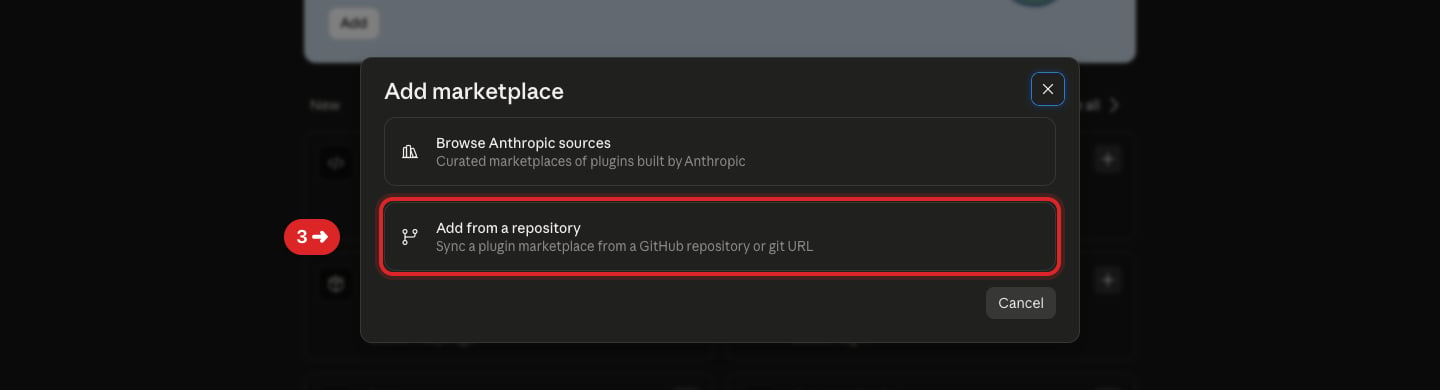
4
Enter the Enrichley repository
Open the repository picker.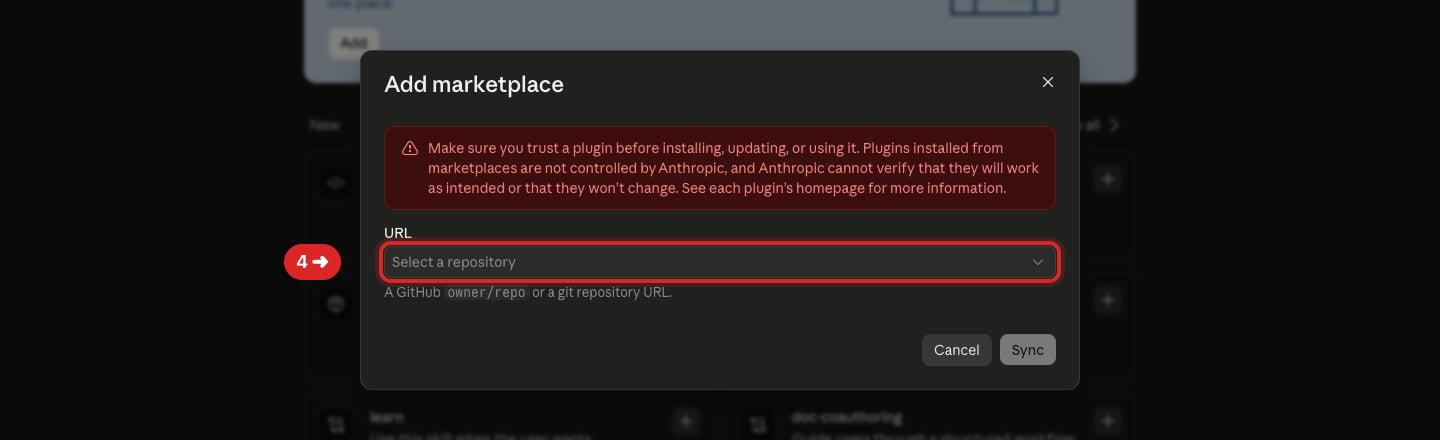
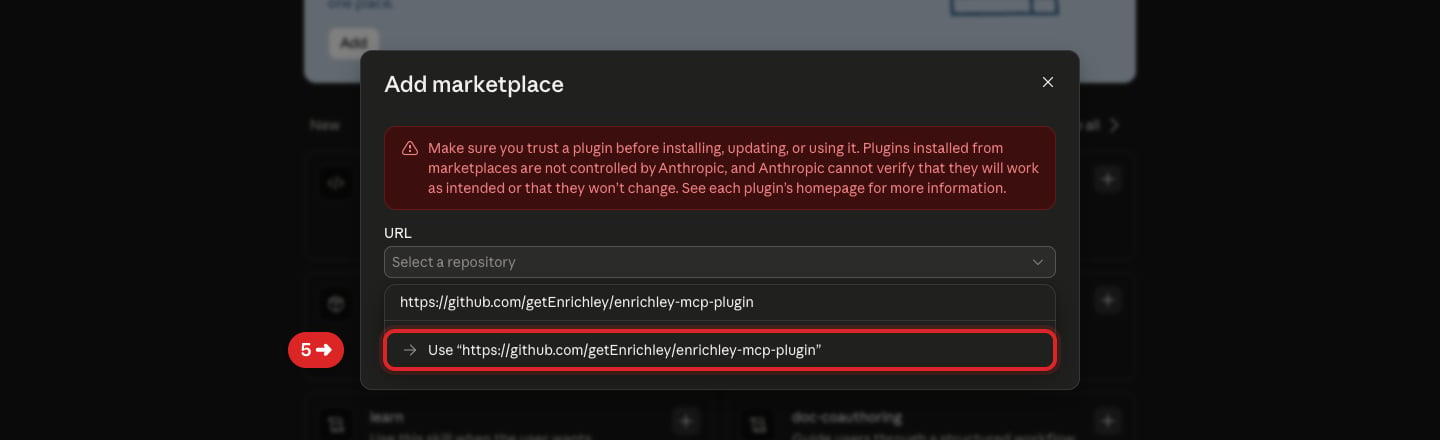
5
Sync the marketplace
Leave Sync automatically switched on, then select Sync.Automatic sync lets Claude receive future Enrichley plugin updates without repeating this installation.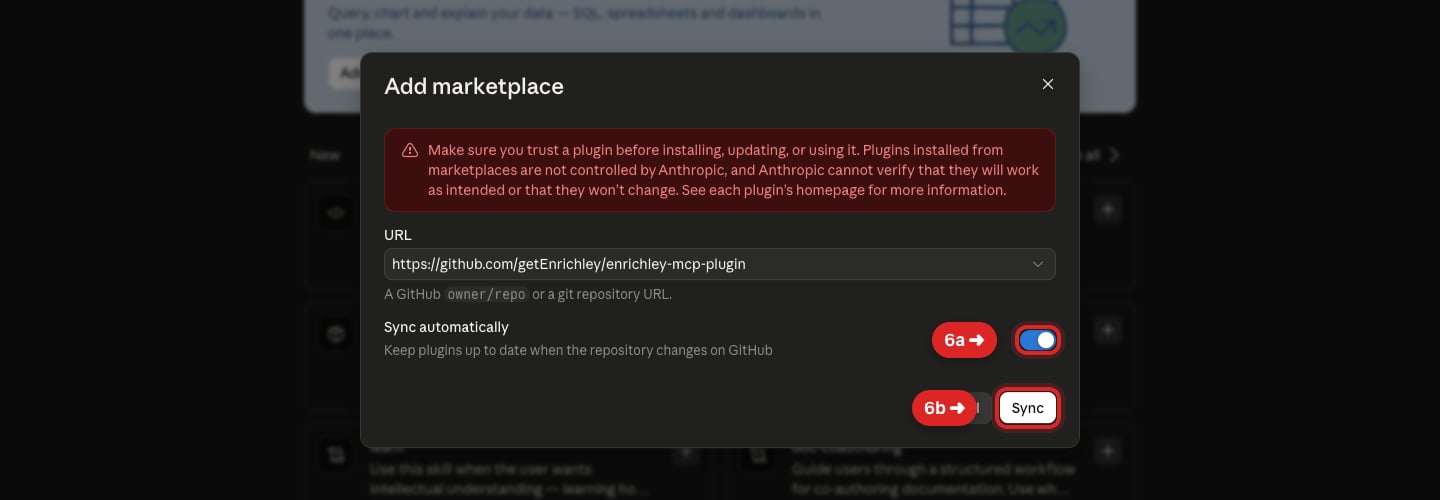
Install the plugin
1
Open Enrichley
After the marketplace finishes syncing, Claude displays an Enrichley result. Open Enrichley.
2
Check the plugin and select Add
Before installing, confirm the detail page shows: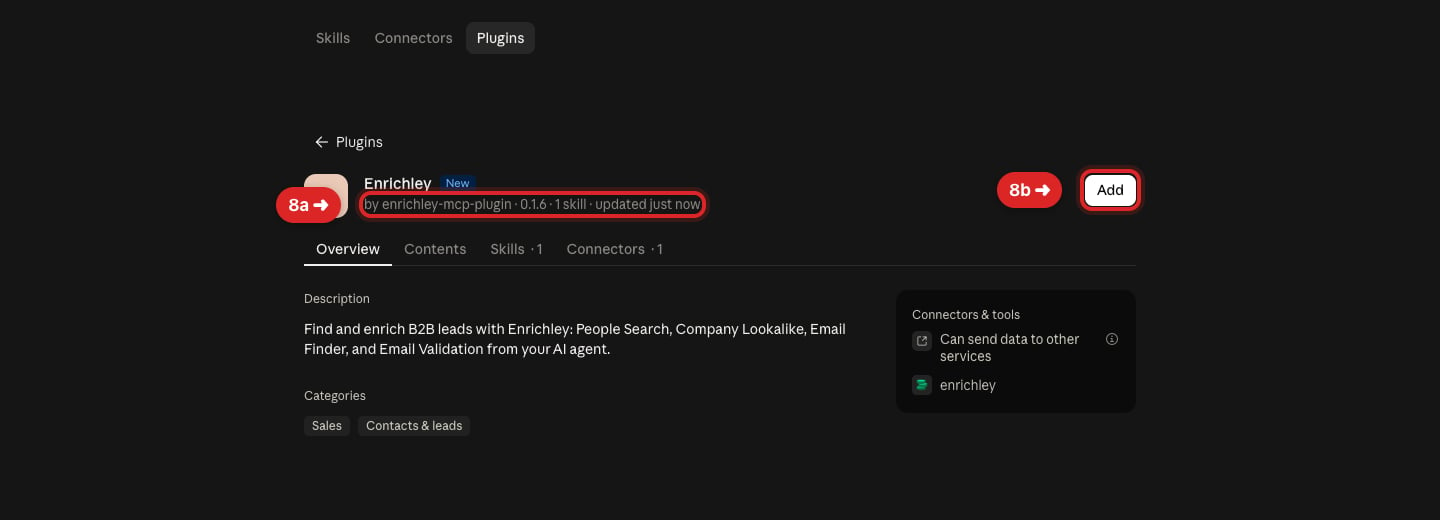
- Enrichley;
- publisher enrichley-mcp-plugin;
- 1 skill; and
- 1 connector.
The version number in Claude can be newer than the one shown in this screenshot. That is expected; install the newest version Claude displays.
3
Open the Connectors tab
Claude confirms Enrichley is installed and ready to use. Make sure the plugin switch is on, then open Connectors · 1.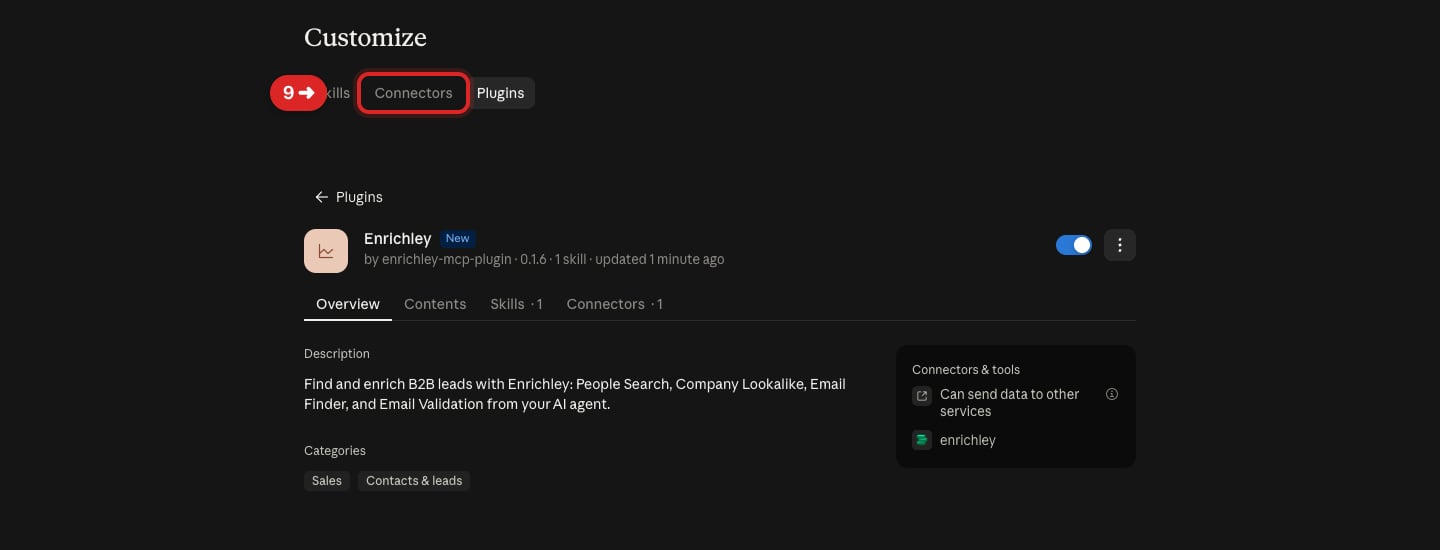
Connect your Enrichley account
1
Start the connection
On the plugin’s Connectors tab, select Connect next to 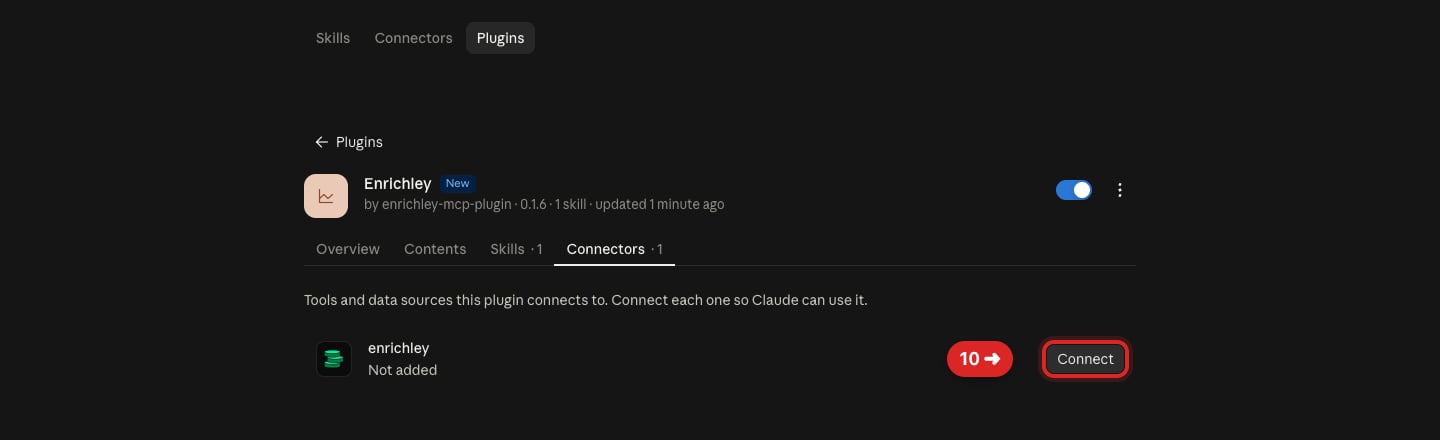
enrichley.2
Add the preconfigured connector
Claude opens a prefilled connector window. Confirm it shows: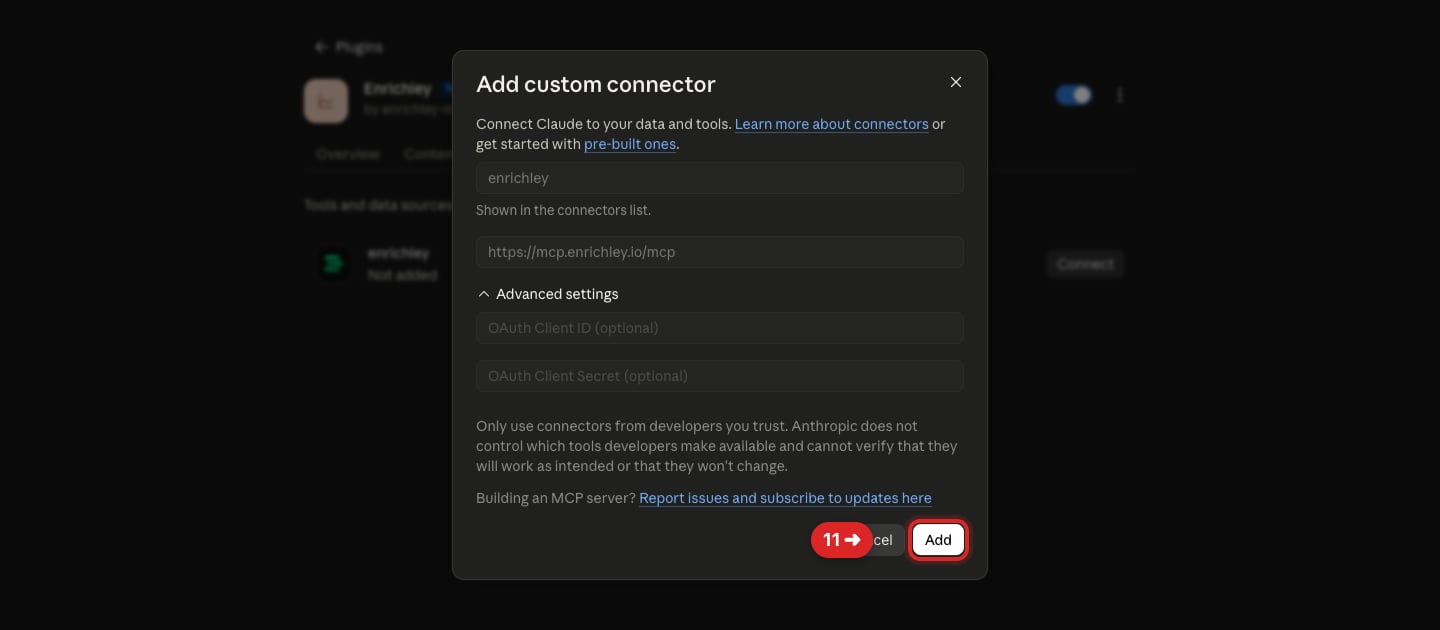
- Name:
enrichley - Remote MCP server URL:
https://mcp.enrichley.io/mcp
3
Authorize the new connector
Claude returns to the plugin’s Connectors tab. Select Connect again to begin account authorization.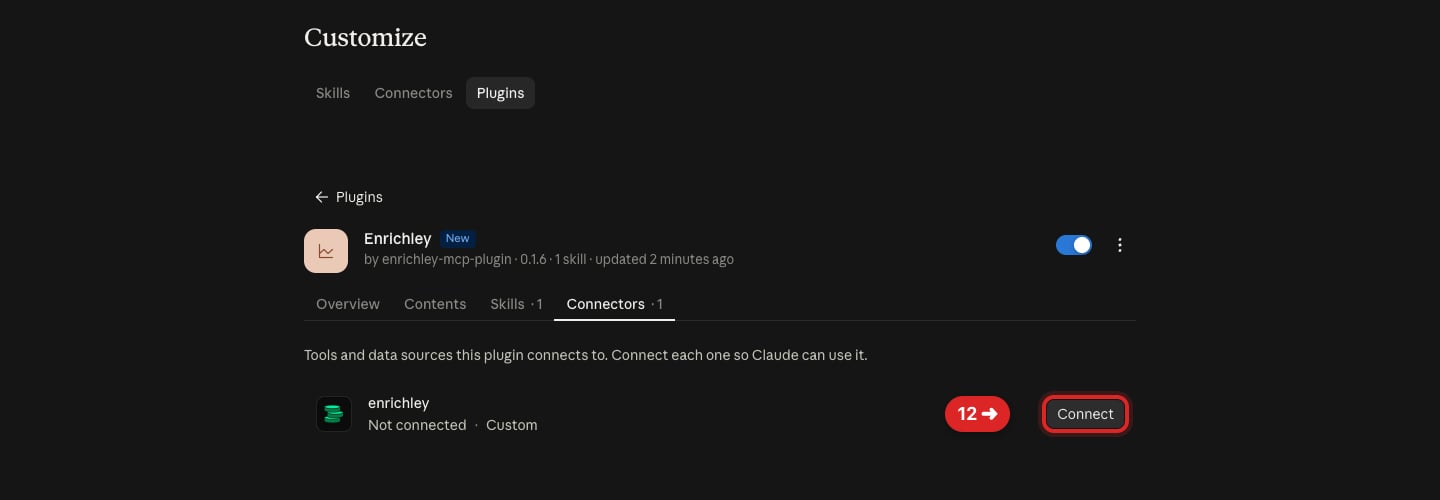
4
Allow Enrichley access
Your browser opens Enrichley’s authorization page. Sign in if asked, review the access request, and select Allow.Enrichley requests only the identity information needed to connect Claude to your Enrichley account. The account identity in this screenshot is intentionally blurred.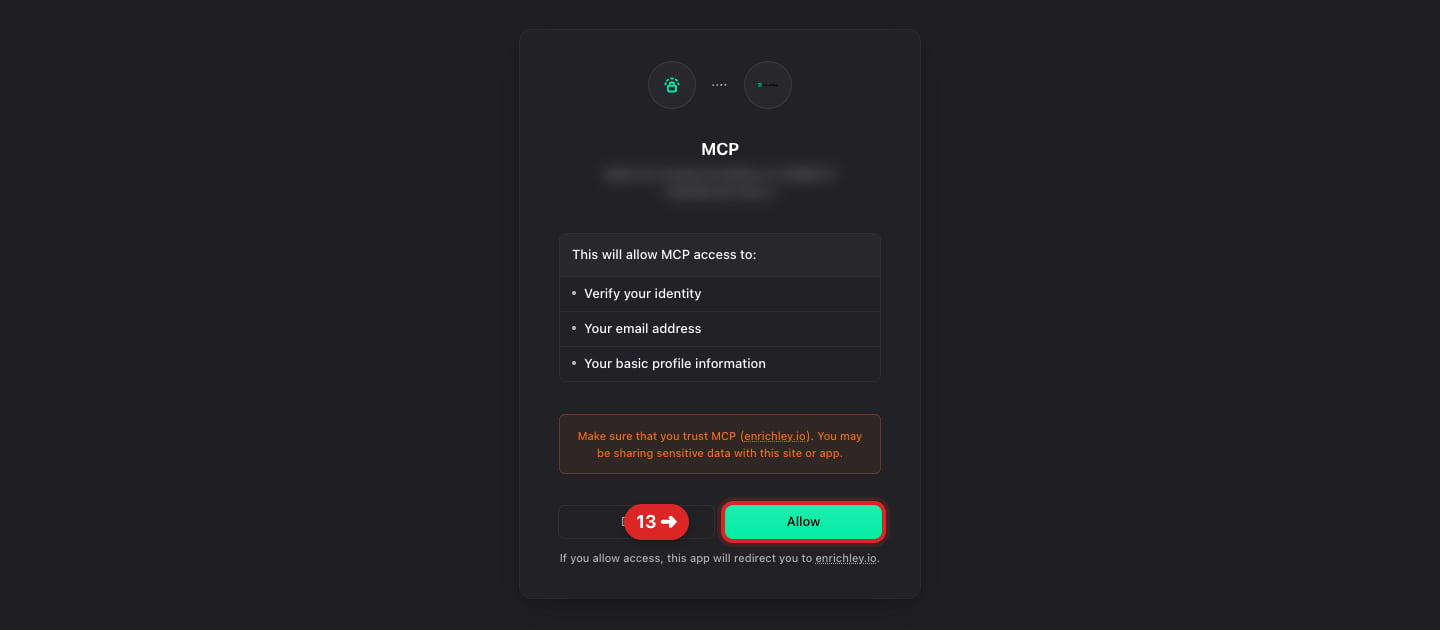
5
Allow Claude to connect
Enrichley shows the exact access Claude requested. Review the permissions, then select Allow. Claude returns to the Plugins page.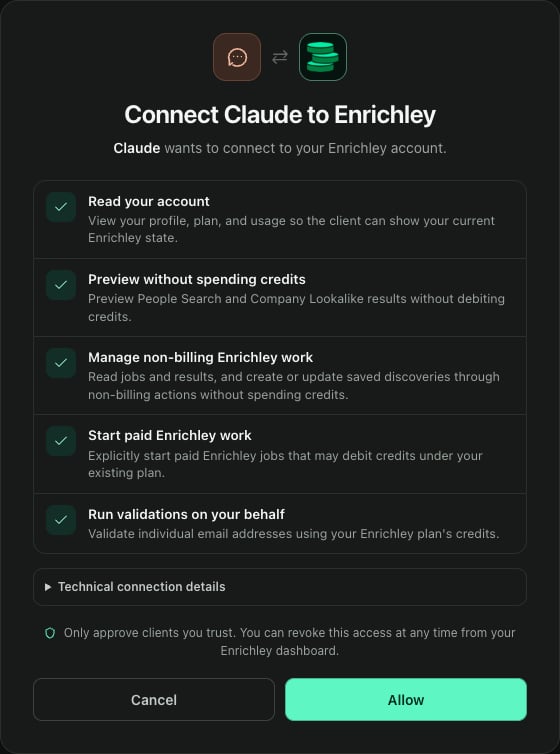
6
Confirm Connected
Return to Customize → Plugins → Enrichley → Connectors · 1. The 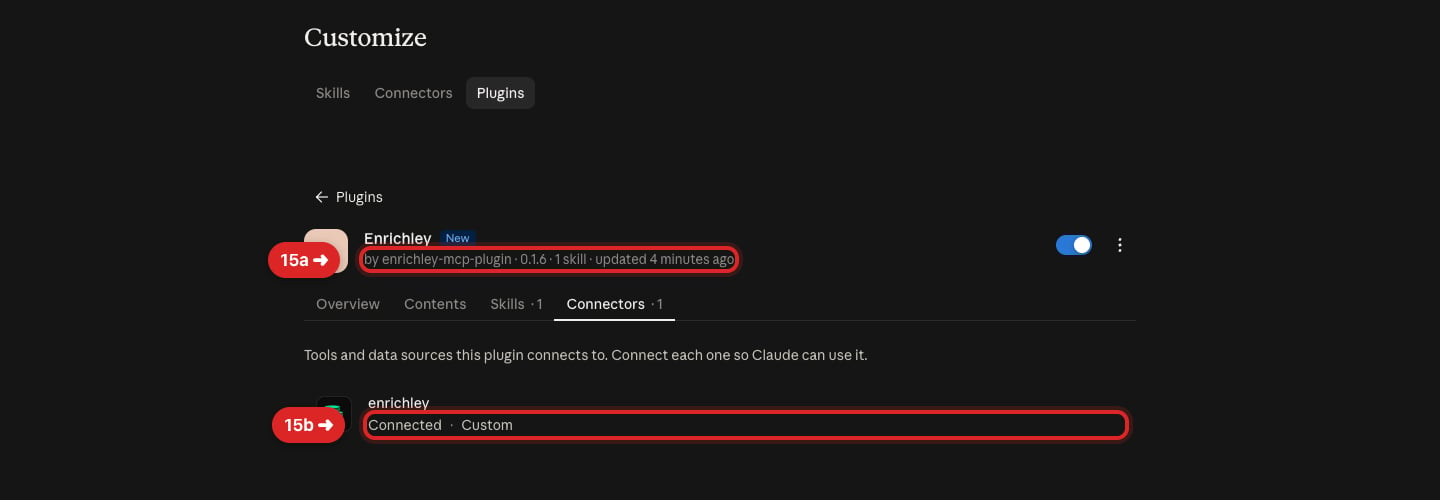
enrichley row must say Connected · Custom.Verify the connection
1
Start a fresh chat
Open a new Claude conversation and enter: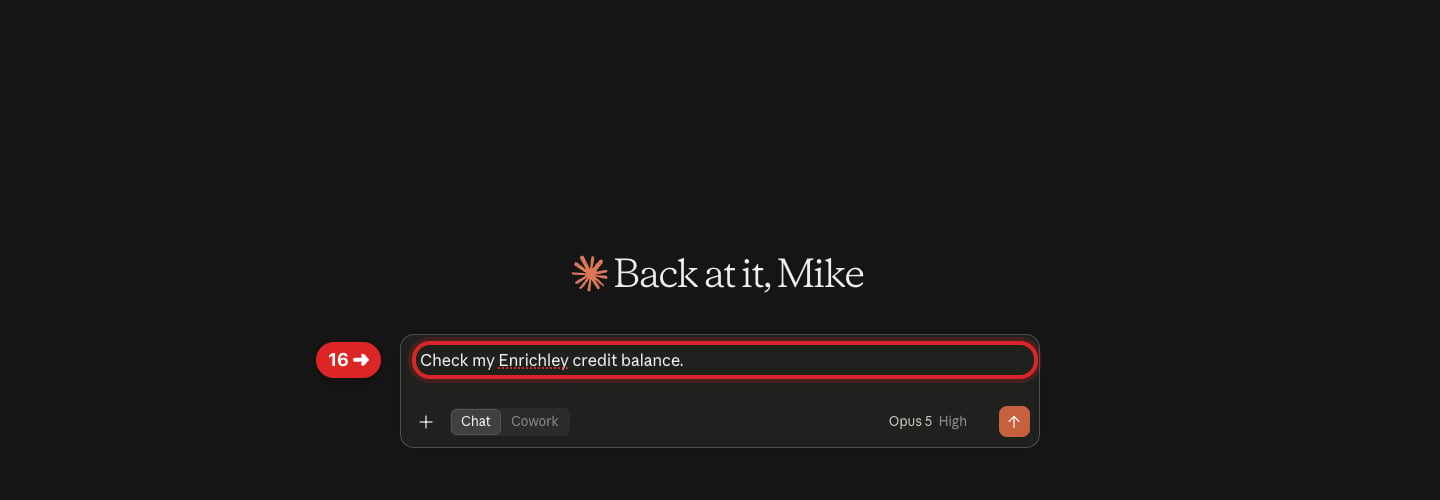
Check my Enrichley credit balance.Press Return to send it.
2
Allow the first free tool call
The first time Claude uses an Enrichley tool, it asks for permission. Choose Allow once for this test.You can change individual tool permissions later under Customize → Connectors → enrichley. Paid runs still use Enrichley’s separate quote-and-confirm flow.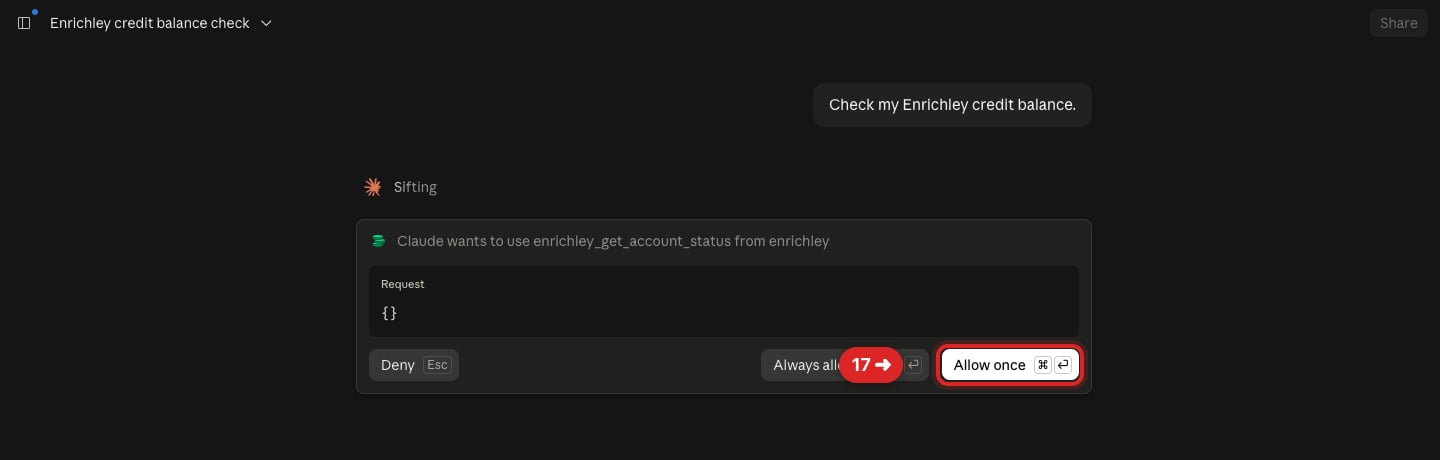
3
Look for the Enrichley account card
Setup is complete when Claude calls 
enrichley_get_account_status and renders the Enrichley account card.The live account totals are intentionally blurred in this screenshot.What you installed
The Enrichley plugin gives Claude both:- the Enrichley connector, which securely accesses your Enrichley account through OAuth; and
- the using-enrichley skill, which teaches Claude how discoveries, previews, quotes, confirmations, downloads, and credits work.
Create a company lookalike search from stripe.com and show me a free preview.
Find heads of sales at US fintech companies. Start with a free preview and do not run anything paid without asking me.
If something does not match
- No Connectors tab: wait a few seconds and reopen Enrichley. The plugin details can finish loading after the page first appears.
- Connect still appears after authorization: reload Claude, then reopen Customize → Plugins → Enrichley → Connectors · 1.
- An old conversation cannot see Enrichley: start a new conversation. Claude fixes a conversation’s tool catalog when the conversation begins.
- More than one Enrichley connector appears: keep the connected lowercase
enrichleyconnector installed by the plugin and remove or disconnect stale standalone or development entries. - Authorization expired: select Connect again and complete both Allow steps promptly.
Enrichley plugin overview
Learn what the plugin includes, how updates work, and how to uninstall it.
Tools and resources
See the Enrichley tools Claude can use and what each action costs.